
Getting started
Get started with TestingView
Install TestingView, link your TradingView username, start a session, and take your first simulated trade. The Starter plan is free and holds 20 trades per session.
Eight steps to a first journaled trade
Check what you need
A TradingView account, and a TradingView plan that includes the history and timeframes your method uses; TestingView cannot unlock TradingView plan limits. For the browser extension, use Chrome, Edge, or Firefox. For the desktop add-on, install TradingView Desktop on Windows first.
Install TestingView
Get extension opens the right store for your browser: the Chrome Web Store for Chrome and Edge, or Firefox Add-ons. For TradingView Desktop, download the desktop add-on. It runs inside TradingView Desktop and does not replace it.
Create your TestingView account
On the account page, sign in with Google and enter your TradingView username exactly as TradingView shows it. Access is linked to that username. TestingView never asks for your TradingView password.
Start a session in TradingView
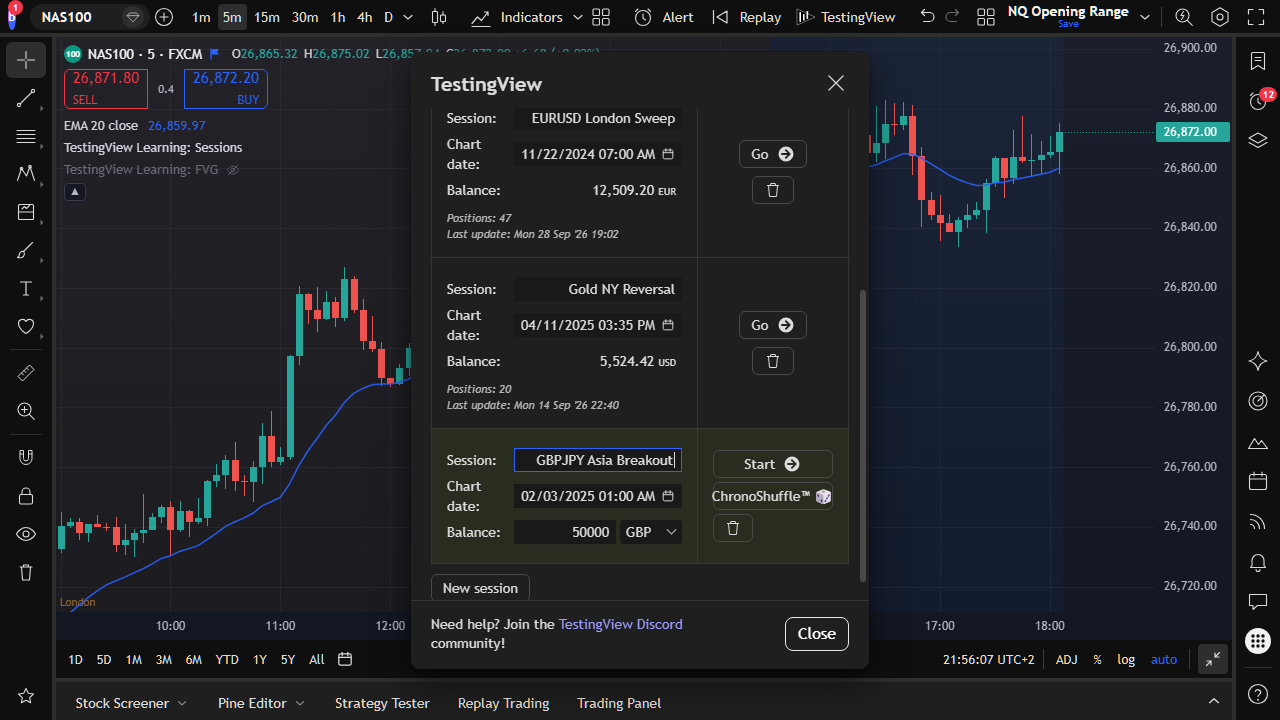
Open TradingView with the layout you trade and click the TestingView button in the toolbar. Create a session: a name, the starting capital you would really trade, an account currency, and a start date. Or use ChronoShuffle to start on a random date inside a range you choose.
Turn on the settings that keep the test honest
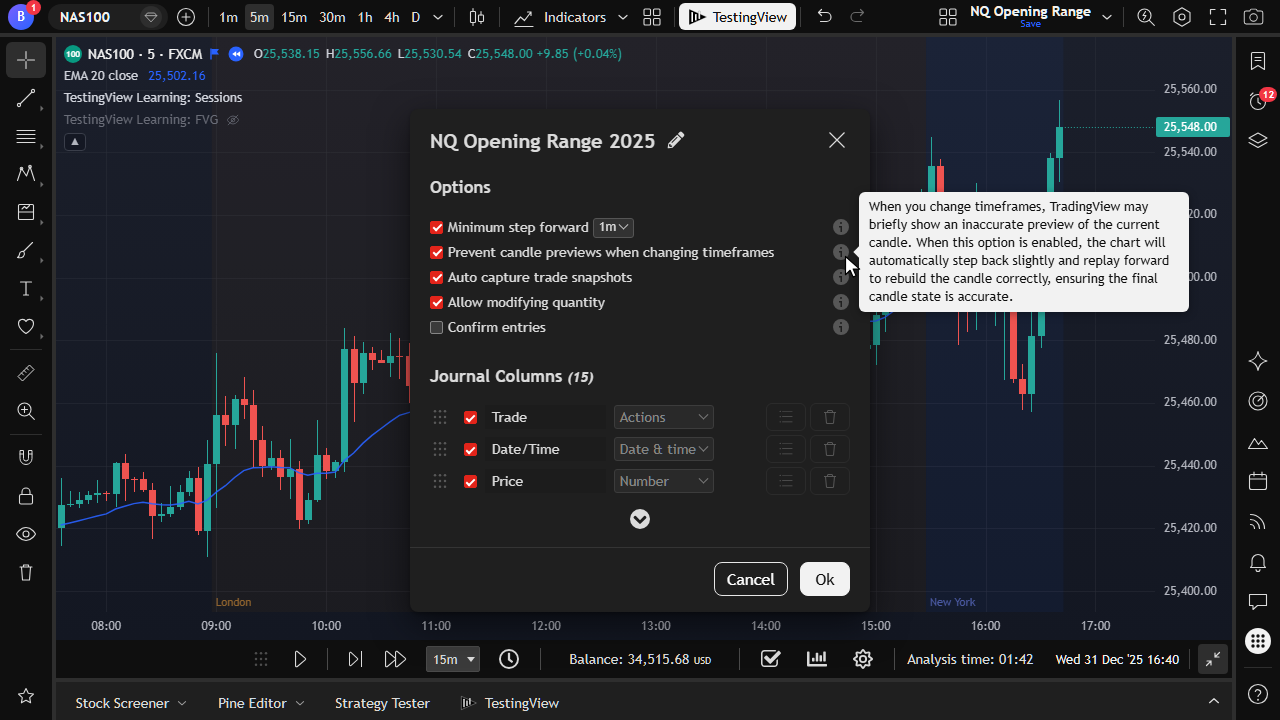
In TestingView settings, turn on Prevent Candle Previews if you will switch timeframes, Confirm Entries if you want to accept or reject each trade as it opens, and automatic snapshots if you want the chart saved at entry and exit. Set the minimum playback step you will use while a trade is open.
Take the first trade
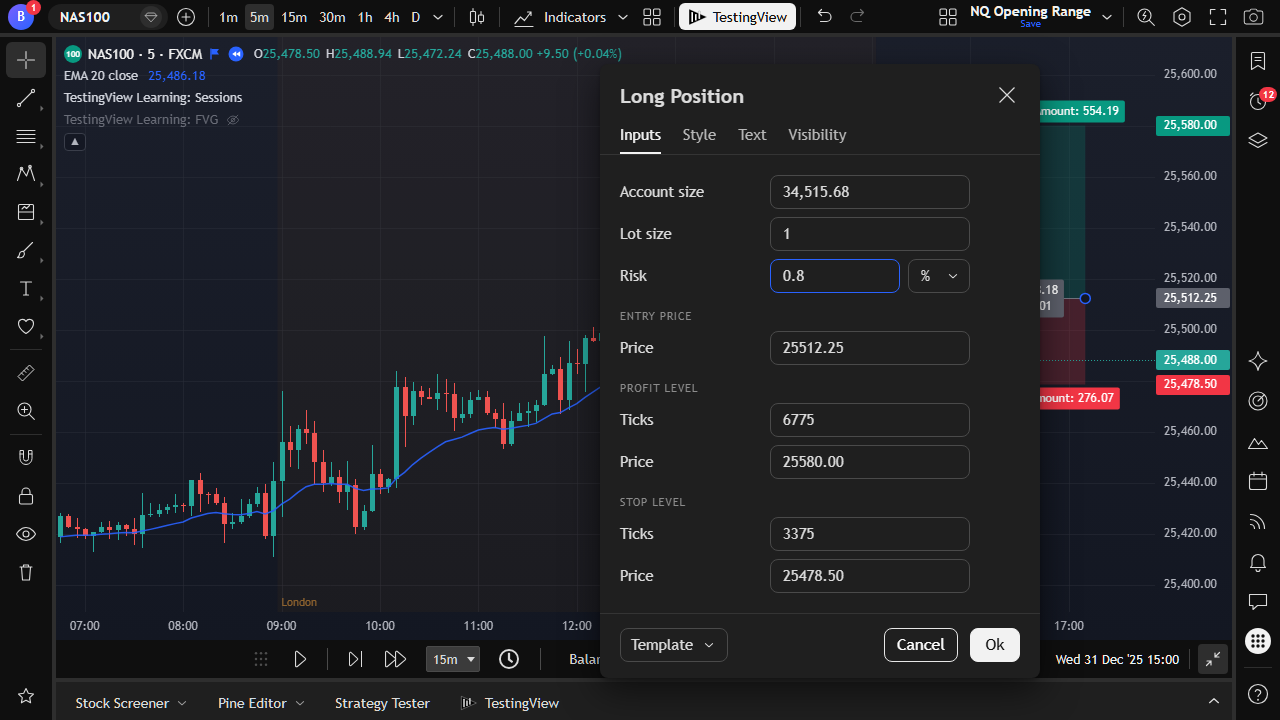
Play candles forward until your setup appears. Draw a TradingView Long Position or Short Position tool, place the stop and the target, and set the risk as a fixed amount or a percent of the session balance. TestingView opens the trade when price reaches the entry.
Manage, close, and note
Drag the managed stop, target, or break-even line, or close the trade from the journal. Write the reason for the trade in the Notes column while it is opening, not after the result is known.
Read the statistics after a real sample
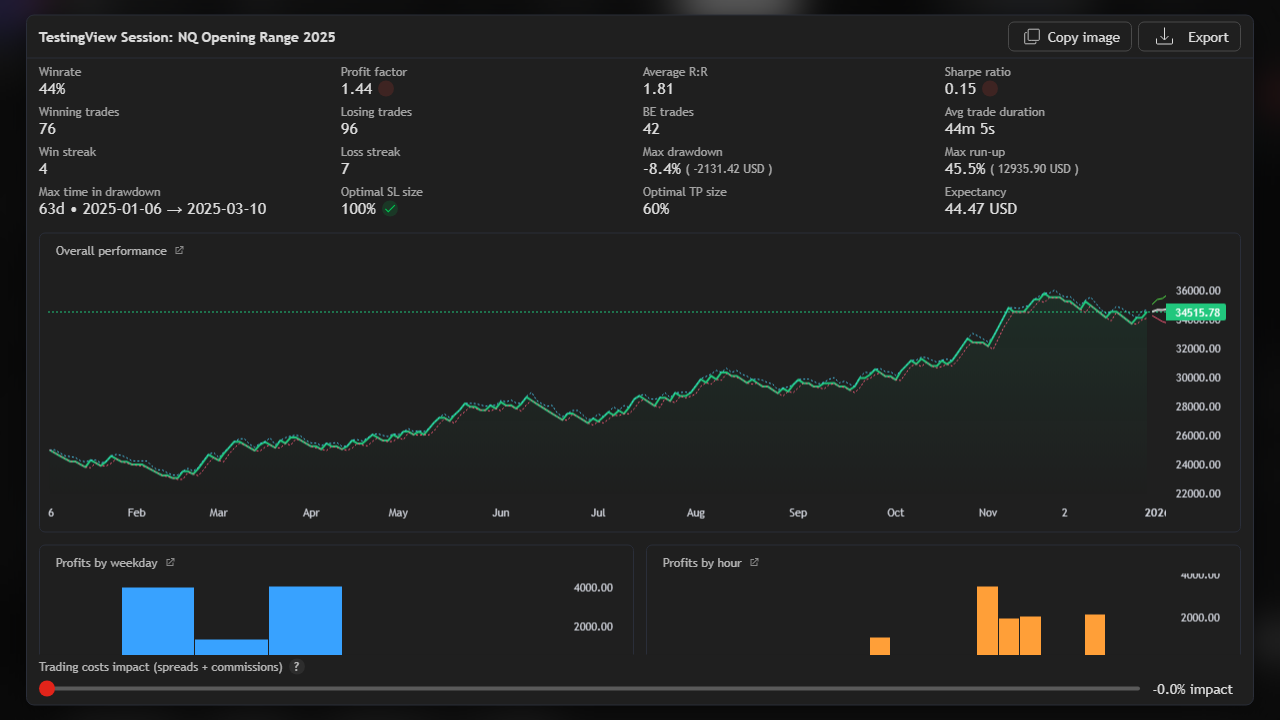
Keep going until the sample includes losing streaks and different market conditions. Then read expectancy, profit factor, and maximum drawdown. The methodology page explains how each figure is computed.
If something does not work
- My TradingView plan does not replay lower timeframes
- The trade did not open
- Go to Time does not work with an open trade
- TestingView asks for a smaller step
- I changed my TradingView username
- Which browsers are supported
Still stuck? Ask in the Discord community or email [email protected].